
Overview
Locations can create contact relationships. Contacts will be assigned to the network as a supplier to and/or customer of your location. Contacts in the network that have a similar relationship to your location can be assigned to groups reflecting that relationship. Contacts that are related to each other can be assigned to labels that will denote that relationship.
Benefits
Groups and Labels can be used together or independently to filter contacts. Aliases are used as a shortened version of a contact's name in reporting.
Prerequisite
Contacts must be first assigned to your location by Jera Support.
Navigation
Location Console => Administration => Network
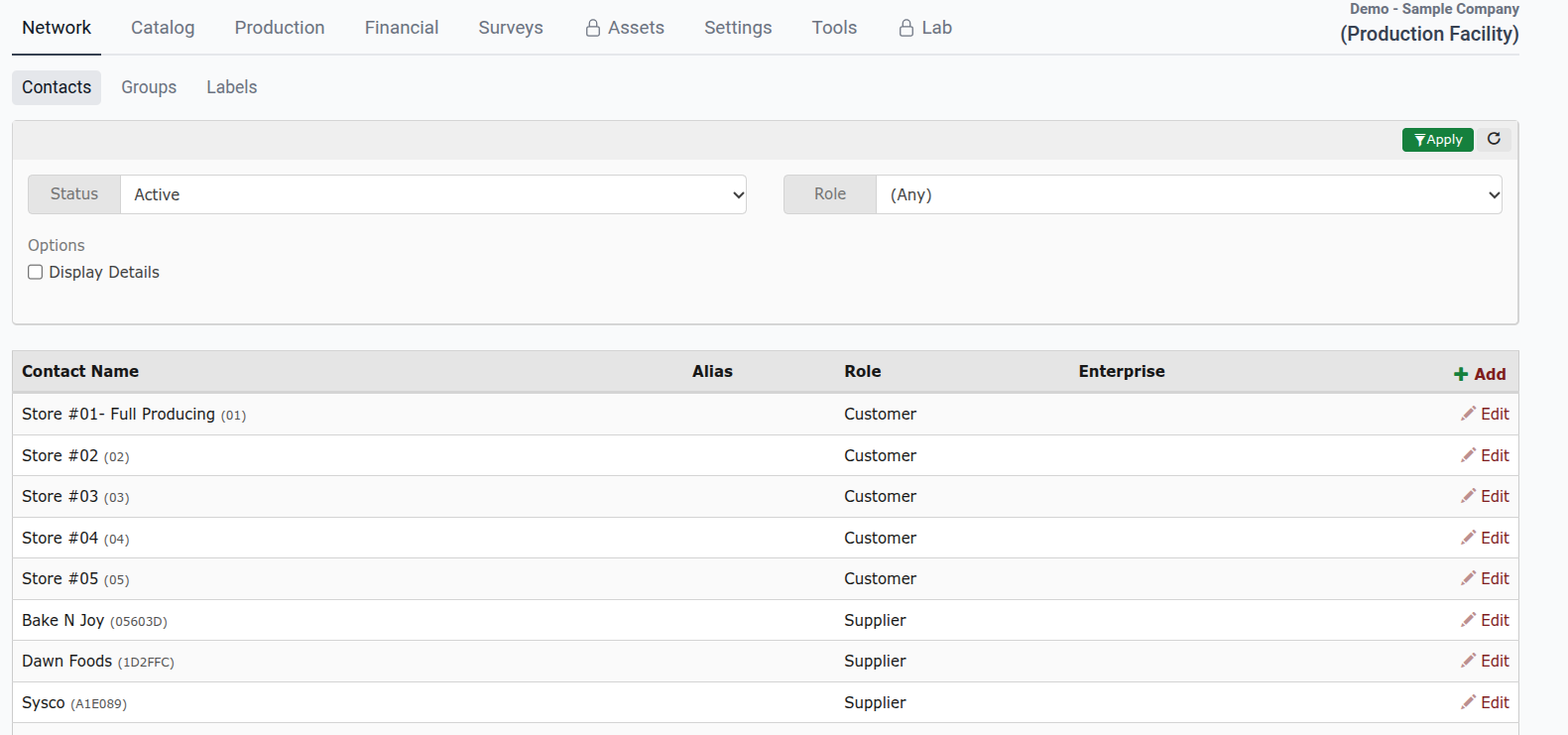
Specifying Criteria
Alias: The alias field is typically an abbreviated version of the contact name and is used in various daily reports. Aliases for contacts can be used as an abbreviated name on reports. Aliases can also be used to order how contacts are displayed on daily reports.
Group: A group is a title used to group contacts that have a similar relation to your location. These usually include stores, wholesale locations, vendors, etc.
Label: A label is a title used to group related contacts together. Labels are frequently used to denote contacts that belong to the same owner or company.
Contacts: Contacts include locations, suppliers, and vendors that have a relationship with a designated location.
(Note: Be sure to click "Save Changes" after making any modifications.)
Tips & Tricks
- To Add/Remove/Modify contacts, use this link to SUBMIT A SUPPORT TICKET
- Alias names are managed by editing the contact in the network list.
- New group and label names are managed under the Groups and Labels tabs in the Network.
- A contact's group name can be changed by editing the contact in the network list and changing the selection in the drop-down menu.
- The contacts that belong to specific groups and labels can be managed by editing existing group names and label names.
Inactive contacts are available for reporting by clicking Add Contacts and unchecking the Active setting in the filter box.