
Supplyit Site Administrators use messages to share site status updates, upcoming Enterprise promotions, and release details. Accounts use them to share contact information, standard procedures, and product promotions.
Navigation & Message Tabs
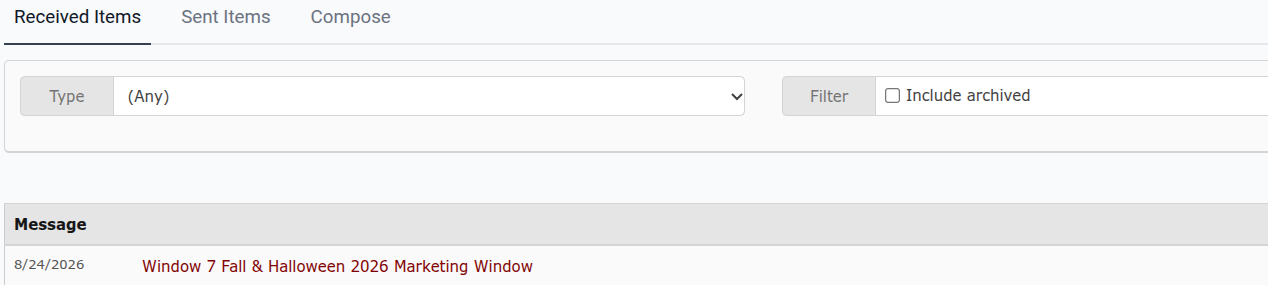
Accessing Messages: Click your login name at the top right of the page and select Messages.
Tabs: Information is organized across three tabs: Received Items, Sent Items, and Compose.
Filtering & Views: Use filters to view specific message types or include archived items.
User Permissions
Account Console: Send messages to locations and contacts accessible to your account.
Location Console: Select specific locations or location contacts.
Compose Permissions: Only Account Users assigned to specific locations/contacts can compose messages. If your role lacks permission, the Compose tab will not appear.
Creating a Message
Click the Compose tab.
Set your message criteria:
Message Type: Defaults to Bulletin (used by Account Administrators for single/multiple locations or full accounts). News can only be posted by Jera Site Administrators.
Active Status: Set whether the message is active or inactive for a specific date range.
Request Receipt: Check this option to require recipients to confirm receipt. You can view responses directly below the message.
Date: Shows the post date; can be modified for recurring annual messages.
Status Priority: * High: Expands automatically on the home screen with an Attention flag.
Medium: Displays collapsed with an Important flag.
Subject & Body: Enter a title. Type directly into the editor rather than pasting text to avoid formatting issues. Messages are capped at 4,000 characters.
Recipients: Choose the specific locations or contacts who will see the post on their home screen.
Click Save.
Inactivating or Deleting a Message
Navigate to the Sent Items tab.
Select Edit next to the message.
Change Active to No and click Save. The message will immediately stop displaying for recipients.
Tips & Best Practices
Viewing Active Items: Active messages appear on your home screen or under your username menu.
Management Rights: Only the original composer (listed at the bottom left of a message) can delete or inactivate it.
Archiving vs. Inactivating: Archiving a message only hides it for your account. Inactivating it removes it for all recipients.
Maintenance: Regularly review and inactivate outdated messages to keep home screens clear.