
*Catalogs are used to maintain a list of products that are purchased or sold by a location. They provide product information for the account and its extended supply chain enterprise.
Overview
Adding Products for Accounts with Private Catalogs
Add new vendor products to the vendor catalog.
Add production items and ingredient items (generic items related to one or more vendor items) to the account catalog.
Adding Vendor, Production, and Ingredient Items to the Location Catalog (All Accounts)
Connect ingredient products to vendor products.
Set active status, supply status, and production lead time in the template account.
Copy new products to all locations.
Create the production product recipe.
Add new products to labels.
Add products to stations.
Terminology
Items: Account-level catalog entries.
Products: Location-level catalog entries.
Generic Products: Ingredients or packaging related to one or more vendor items in a restorative relationship. These products increase when their related vendor products are purchased in a location.
Items and Products
This section provides instructions on how to add new items to Supplyit. New items must be added to your account catalog before they can be added to a location catalog and used in a location (store). Items at the location level are referred to as products.
Adding Items (Applies to Vendor, Production, and Generic Items)
New items are added to the catalog in the Account Console first, then brought into a location and configured.
Navigation: Account Console > Administration > Catalogs > Details
Confirm that the department and category for the new item exist. Add new departments or categories when required.
Click Add.
Name: Enter the item name.
Note: Vendor item names should include the ordering unit in the name field (e.g.,
case/144,1 gal,6/32 oz).
Assign the appropriate Department and Category.
Code: Enter the item number in the Code field.
Vendor products typically use the supplier's ordering item number.
Retail items can use an assigned custom number, or a default code will be generated if left blank.
Click Save Changes.
Add units as needed.
Configuring Products
Once you have added items to your location, you need to configure the product. Product configuration must be completed in the following areas:
Product Details
Advanced Production (recipes)
Labels (groups of products)
Stations / Assemblies
Forced Order Templates (if applicable)
Vendor Products
New vendor products must be connected to their associated generic product. This step is critical for accurate inventory tracking.
Production Products
In the product details section, configure the active status, supply status, and production lead time:
Lead Time: Products made on the same day do not require a production lead time. Lead time format is
dd hh:mm(e.g.,01:00:00= 1 day).Active & Supply Status:
Products being produced and sold should be set to Active and Supplied.
Products used strictly as ingredients are generally not supplied.
Inactive products will not appear on orders (even if included on an order template), so it is important to activate items available for sale and deactivate those that are not.
Adding Products to Location Catalog
Navigation: Location Console > Administration > Catalog > Products > Add
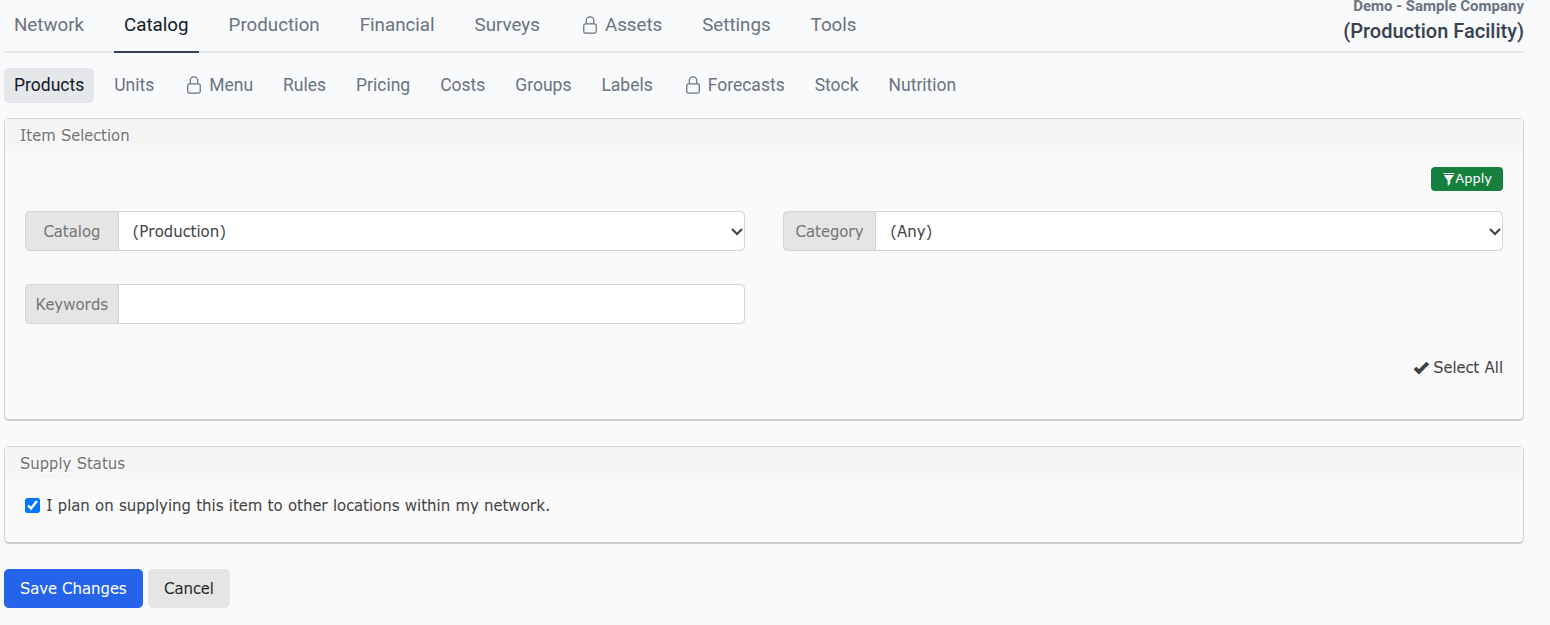
Select the appropriate catalog for your new products (Retail, Generic, Recipes, or Vendor).
Use Category and/or Keywords to filter items.
Set the active status (only active items appear on orders).
Tip: While configuring an item, you may want to leave Supply Status unchecked until full setup is complete.
Click Save Changes.
Repeat as needed until all components for the new product have been added.