
Navigation: Activities>Reports>Summary> Dropdown to Product Activity Statistics
- Click+Add in the location filter box to select your location(s)
- Date range = dates you want to review
- Column Specification boxes to be checked: Sales & Waste or Usage & Waste
- Group Specification boxes to be checked: Location, Category & Product
- Build report
Entering forecasting details
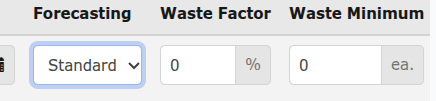 Navigation: Activities>Orders>Templates
Edit Template
At the bottom of the template window, you will use the horizontal scroll bar to scroll all the way to the right to view the forecasting box shown above.
Select Standard and enter Waste Factor and/or Waste Minimum
To set forecasting details, enter the Waste Factor (as a percentage) or the Waste Minimum (as the number of pieces), which is the additional amount of product that you intend to waste.
In order for the forecast order quantity to change with increased demand, you should enter a waste minimum of at least 1. A zero value will not allow the product to increase when waste for that product equals zero.
Click Save Changes
Tip::
- Products with forecasting enabled will display the symbol under Unit
- Forecasting can be enabled on some or all products.
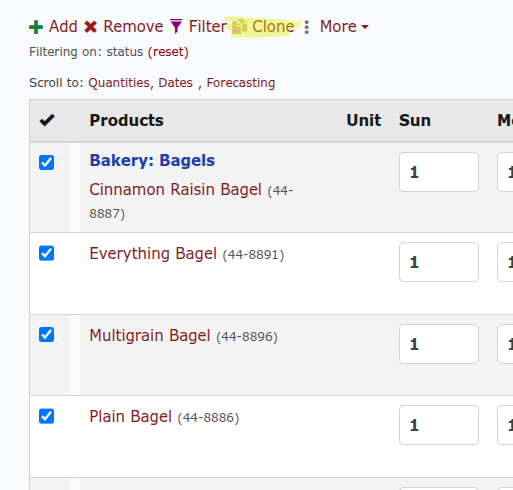
- Clone can be used to select all products that will have the same waste standard.
- Exclude orders that are out of the ordinary from forecasting.
Factors that could impact forecasting when enabled:
Supplier Rules - rounding and direction
Waste not being entered
Weather
Events and Holidays - enterprise and/or local
Seasonal population changes
Note: