
Supplyit users who know their current password can easily update it to a new one. If you have forgotten your password, please contact a company user with higher permission levels (such as a District Manager, supplier office staff, or upper management) or reach out to Supplyit Support for a reset.
Prerequisites
You must be logged into Supplyit.
You must know your current password.
Step-by-Step Instructions
1. Select your Username displayed in the top right-hand corner of the screen.
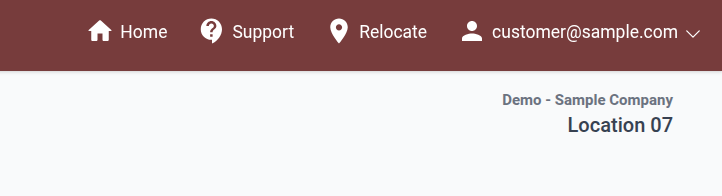
2. Select Profile from the drop-down menu.
3. In the Current Password field, enter your existing password.
4. In the New Password field, enter your desired new password, then re-enter it under Confirm Password.
5. Click Save Changes.
Note: All passwords are case-sensitive. Passwords must be between 6 and 50 characters in length and include a combination of letters and numbers or symbols.